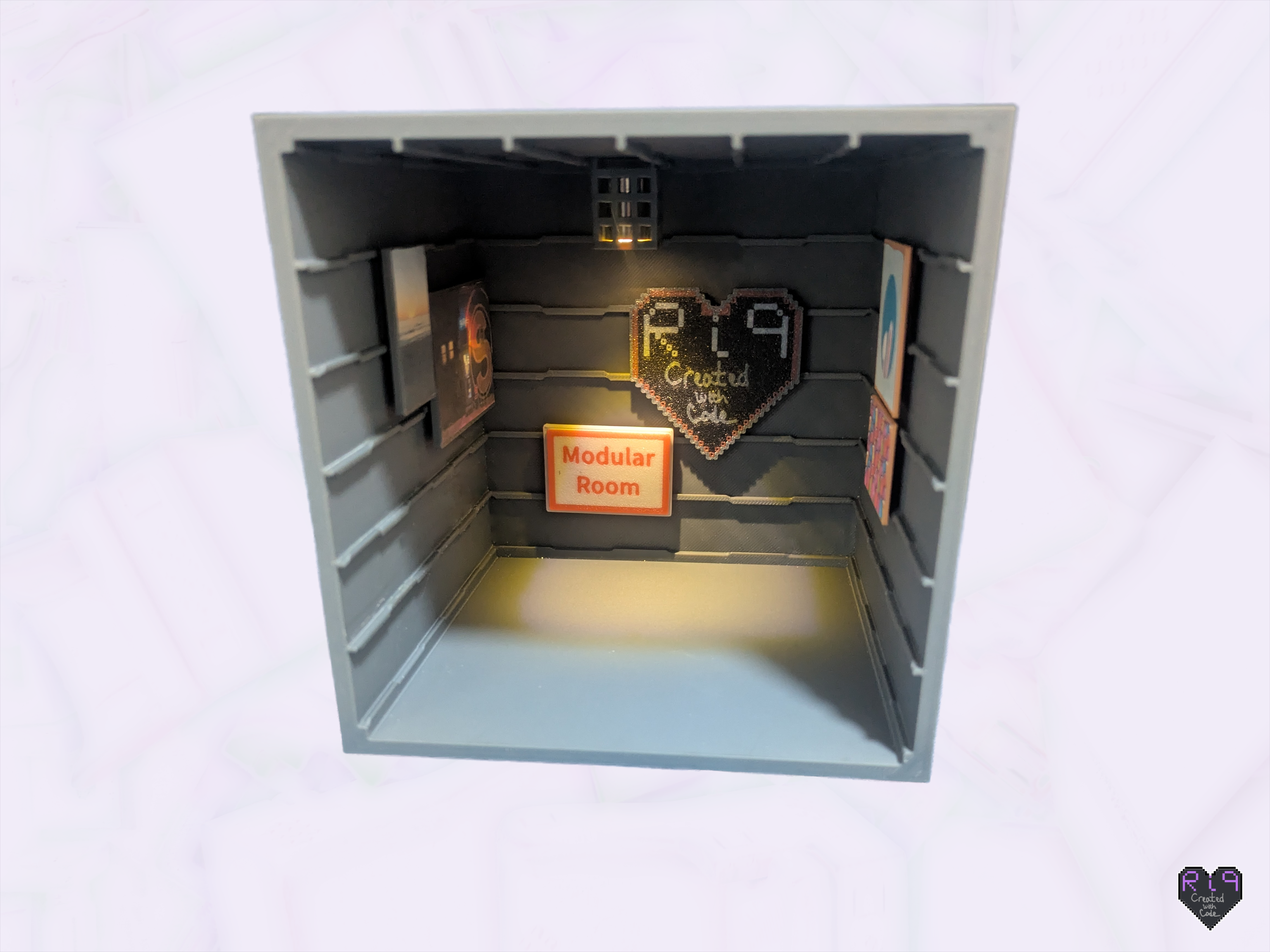
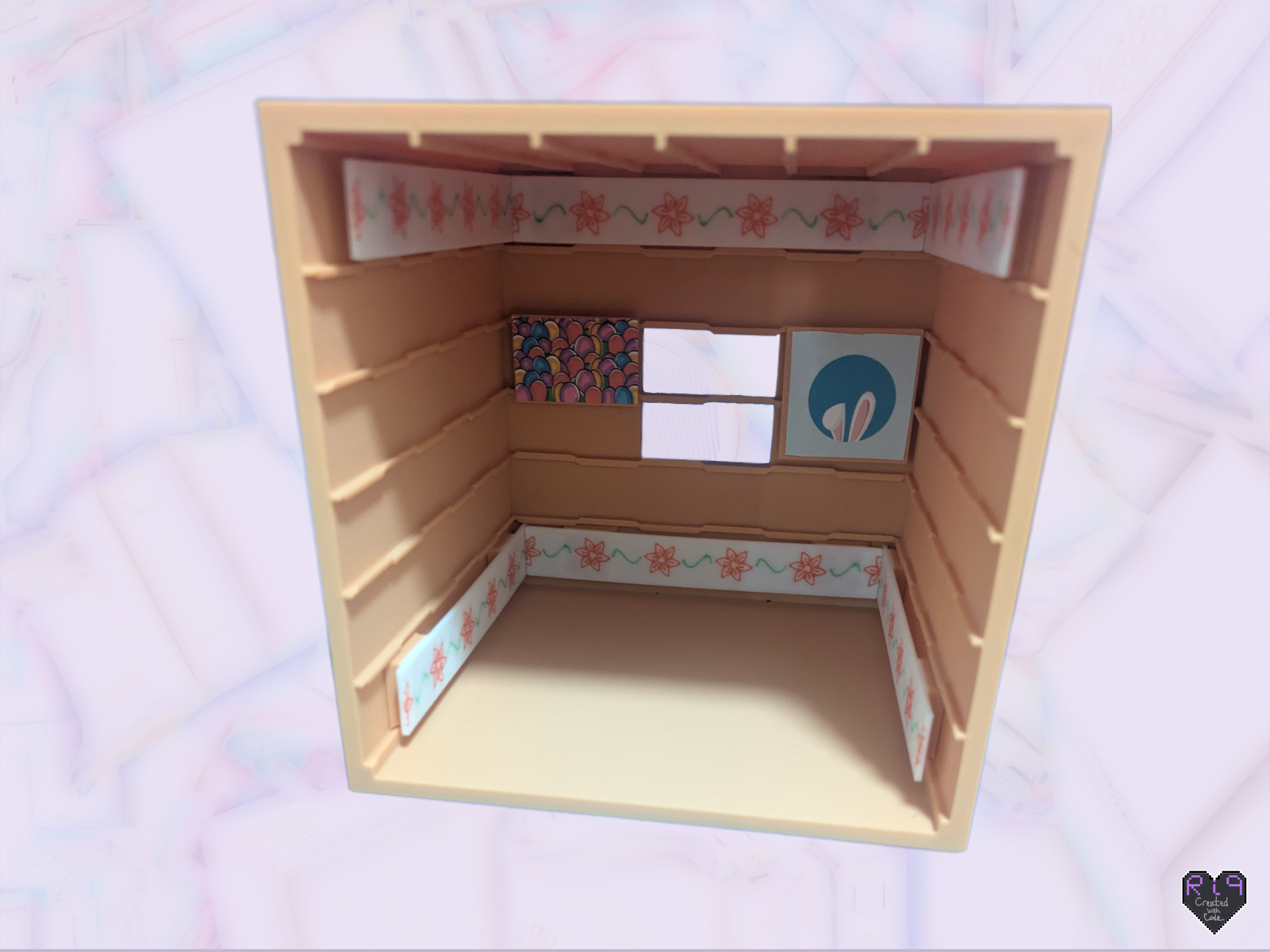
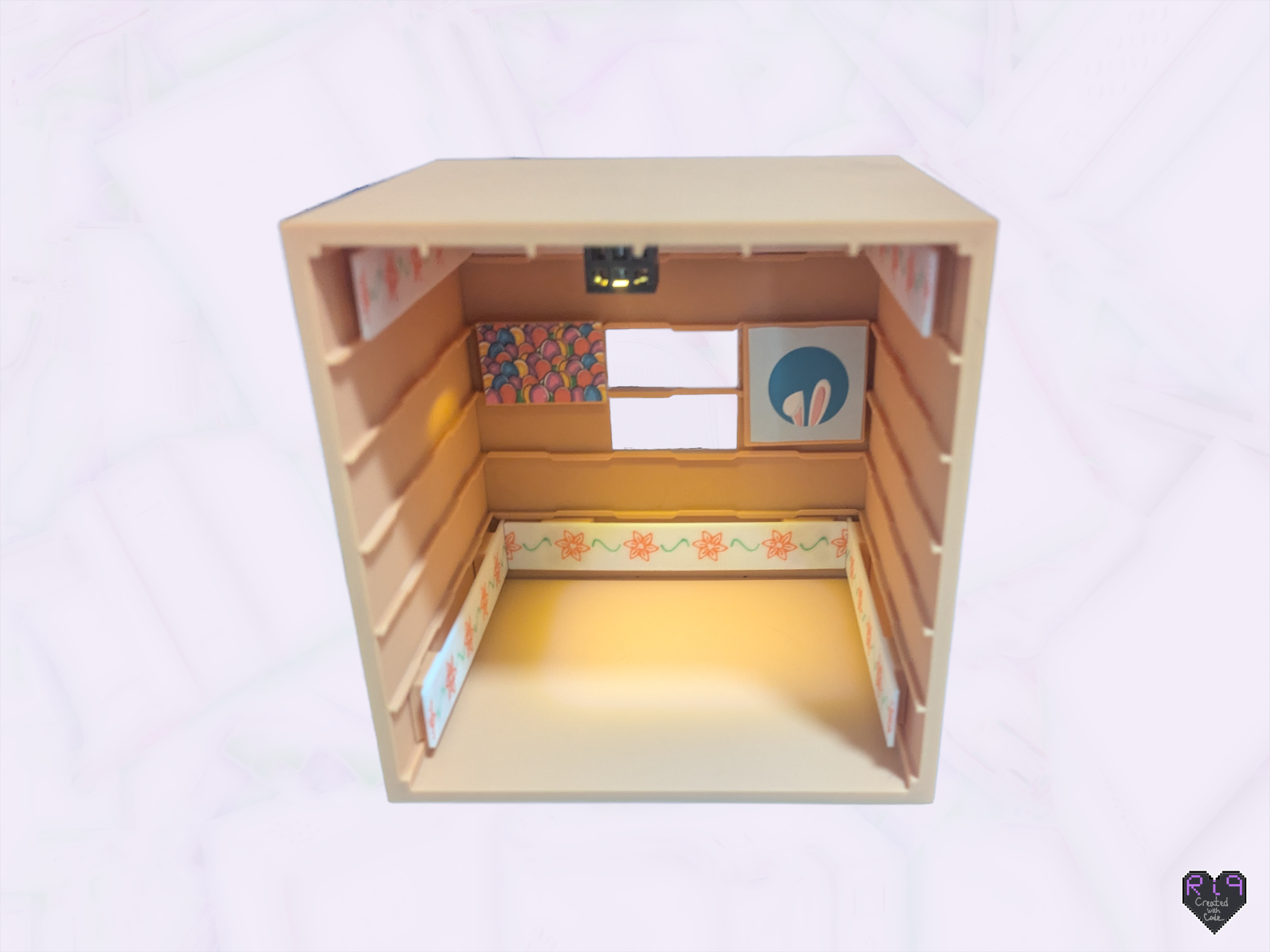
This is set up as a 2-color print, but of course you can use just 1. For best results, match the color of the slider to the color of the room walls for least visibility, and the other to the background of the sign, picture, or poster you are making.
If you are using small SVG details, consider turning on arachne walls if they are available in your slicer.
There are two different types of signs/backings you can print:
Design 1: No assembly needed; click-and-print flat sign
(instructions for how to use a slicer to resize your sign are further below)
For a sign or poster of a default size (24 x 36mm, 36 x 36mm, or 38 x 57mm), just choose one of the models from the plates labeled “1mm thick signs” or “2mm thick signs” and print it. You can then attach stickers to the face, write or color directly on it, glue on a picture, and so on.
You can also glue on any other flat printed model.
If you like to use the text or SVG features of the slicer you can also use them to decorate the model directly, but they must be flat on the model and be visible on the side against the build plate.
Design 2: Backings for signs with a frame/border- a little assembly required
This is for flat prints you made using other tools that you would like to insert like a picture into a frame (such as signs made with ). This sign should be 1.8-2mm smaller than the backing you will print, so for the default size in this file, make a sign 22.2 x 34.2mm (this will only fit a few words).
To make a sign with a border that can act as positioning guides, please print the plates labeled “make_my_sign_slider” and “make_my_sign_frame”. They are on two plates so they can be printed in different colors without the need for switching every layer - if you are using one color for both, they may be printed on the same plate.

the rest of this is for people comfortable with using slicer features
TO MAKE A CUSTOM-SIZED SIGN
These instructions are to customize the size of the provided models using the slicer (if they are too complicated let me know and I'll try to make you the right size). You cannot scale the whole model, as this will affect the connection between the sign and the room. Instead, you must scale only parts of the model.
For signs without raised lip (1mm and 2mm thick sign build plates)
Step 1
For signs without a border, using the slicer, find the group with the desired thickness and size you want to start from in the list of objects on the left. Then select the word “sign” from the list of parts. This will select only the flat sign part of the model.

Step 2
You may then scale this part in the X and Y direction using the scale button from the toolbar (circled below). Enter the desired dimensions in the highlighted box below, but don't change the Z value unless you are comfortable getting the pieces aligned correctly. Make sure the “uniform scale” checkbox is unchecked.

Step 3 (optional)
The slide system is easier to use if the slider is near an edge of the sign. Scaling might have moved the slider further from the edge (left in the image below). To move the sign relative to the slider:
Without changing the selected part click the move button from the toolbar in the slicer (circled at top of image below)
Use the green and red arrows to move the flat sign how you want it relative to the slider (an ideal position is shown in the center below).
Keep the slider within the region of the flat sign backing part, or the print will fail (shown to the right below).
If you are trying to move the whole model on the build plate, just click on the model itself like normal, and all parts will move together